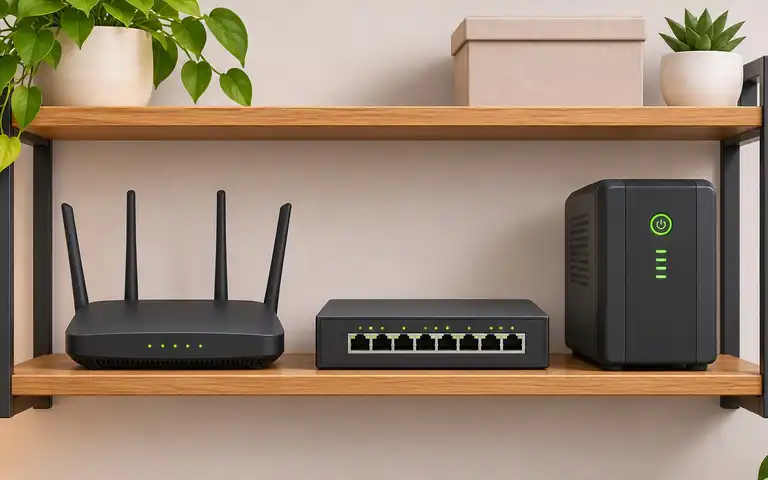
A router replacement can improve coverage yet make smart plugs, lights, locks and hubs appear offline. That does not mean every device is defective or must be factory reset. SSID, password, encryption, band setup and controller reachability can change independently.
Use this guide after installing a replacement router. To diagnose an ordinary ISP outage, use restore home internet. For joining a 2.4-GHz device, use 2.4-GHz smart Wi-Fi setup.
Record what changed before resetting anything
| Symptom | Question to verify | Safer first action |
|---|---|---|
| Phones connect, old smart plugs do not | Did the SSID, passphrase or Wi-Fi security mode change? | Compare exact router and device settings |
| A new hub is visible but devices are missing | Is the controller/bridge powered and on an allowed local network? | Check exact hub pairing/restore documentation |
| Device says it supports only 2.4 GHz | Is the phone/setup app using the required band? | Follow manufacturer onboarding instructions |
| Device connects, automation fails | Does the rule need a different hub, account or cloud service? | Check supported local rule path |
| Remote camera app unavailable | Is the camera recording even without remote internet access? | Check recorder and camera status safely |
| Entry or life-safety device offline | Is there an approved manual method? | Preserve physical access and contact vendor/qualified service |
The FTC Wi-Fi security guide recommends WPA3 or WPA2 encryption, separate router-administration and wireless passwords, and firmware updates. Avoid downgrading the entire household to obsolete WEP or unprotected Wi-Fi to accommodate one old product.
Migrate in an order that protects household functions
- Confirm the provider connection and new gateway/mesh are stable using an ordinary phone or laptop. Record firmware and exact model details.
- Restore the hub/controller’s documented local connection, where applicable; do not expose router administration to the public internet.
- Try a noncritical device such as a light using the maker’s supported migration method; keep a note of what actually worked.
- Check whether each device can update its network settings without wiping scenes, schedules and account access. A reused SSID can work in some setups but is not guaranteed.
- Verify critical manual alternatives separately; do not experiment with required smoke alarms, medical equipment or door locks during a disruption.
The FTC connected-device guide recommends reviewing connected clients and changing insecure default credentials. The NIST router-security guidance addresses supported secure router behavior; it does not certify old smart devices.
Keep a record you can safely share with a helper
Never put real Wi-Fi passwords, device recovery codes, camera clips or personal access instructions in a public spreadsheet. Record only the device model, authentication requirements, vendor help reference, connection status and manual override.
If a device only supports deprecated security or has no software support, ask the manufacturer about replacement or segmented, supported alternatives; don’t weaken the entire network. For broader risk and local control, use the smart-home offline audit.
Router replacement recovery card
| Device/model | Supported network & band | Maker migration step | Function re-tested | Safe fallback |
|---|---|---|---|---|
| Local hub | ||||
| Low-risk light/sensor | ||||
| Camera or recorder | ||||
| Entry/essential equipment |
Next action: restore one ordinary device from end to end, then repeat that verified procedure only for compatible models.
Do all smart devices need a factory reset after a new router?
No. Some can reconnect using compatible network credentials or a supported migration flow. Others require re-onboarding. Verify the exact model before erasing automations.