Internet Still Down After the Power Returns? Check the Connection in Order
After a power outage, distinguish a provider problem from a modem, router, mesh, or device issue using indicator lights and the exact manufacturer's restart steps.
In this guideJump to a section
The lights are back on, but the Wi-Fi still shows “no internet.” Work through the connection from the provider side toward the device, and use the exact modem or router manual to interpret each light. A local Wi-Fi network can be working while the provider is still restoring service, so repeated resets may not help.
Check for the simplest explanation first
- Look for a provider outage. Use the provider’s outage page, app, or phone line from a phone on cellular service. A neighborhood outage can persist after power returns at home.
- Confirm power to the network equipment. Check that the modem or fiber ONT, router, and any required mesh gateway are powered. If a device is on a switched outlet or battery backup, confirm the outlet or backup is operating normally.
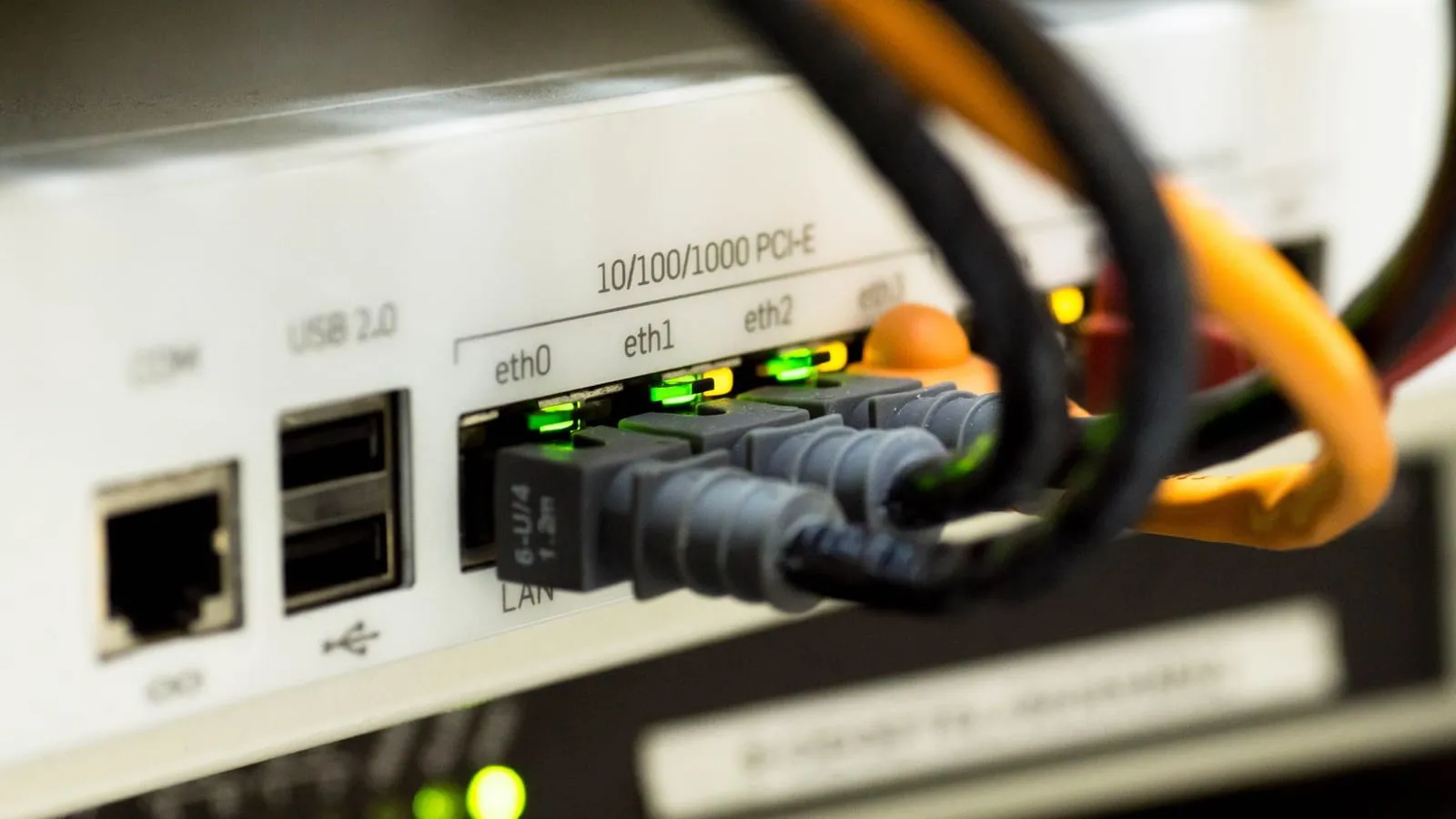
- Read the modem or ONT indicators. Use the manual for the exact model. Cable-modem “online” or upstream lights have model-specific meanings; fiber ONTs use their own indicators. Do not generalize one brand’s light colors to another.
- Test a second device on the home Wi-Fi. Turn off cellular data for the test so the phone does not silently use its mobile connection. If one device works and another does not, the problem may be with that device rather than the provider path.
- Check the router and mesh. Confirm the router indicates a connection to the modem or ONT. If only a satellite mesh point is offline, check the system’s status guide and its placement rather than resetting the whole network.
Google’s Nest troubleshooting separates a provider outage from home Wi-Fi and product-service problems. NETGEAR’s cable modem light guide shows why the precise model matters: even a simple “online” indicator is defined for specific products. Use those pages as examples only; your equipment maker’s manual is the authority for your own indicator meanings.
Restart only when the manual says it is appropriate
If the ISP shows no outage and the modem or ONT appears stuck, use the provider or equipment maker’s documented restart order. Some homes have a combined modem/router; others have a separate modem, fiber terminal, router, and mesh system. Restarting them in a random order can make it harder to identify which link recovered.
Before changing anything, sketch the order of the boxes: provider line to ONT or modem, then router, then mesh points and household devices. Note which device supplies Wi-Fi and which one reports the provider connection. A Wi-Fi name appearing on a phone only confirms that the phone can see a local network; it does not prove that the network has internet access. This simple distinction helps keep the troubleshooting focused.
Google’s published modem restart steps describe its supported setup and include a wait for the connection indicator. Your own provider may specify a different sequence or a longer recovery period. Follow the exact instructions, allow the equipment to finish booting, and record the result before moving to the next device.
Avoid a factory reset as an early troubleshooting step. It can erase Wi-Fi names, passwords, provider settings, or custom configuration and may leave the household with a larger problem. Do not disconnect or bend fiber cables, open electrical equipment, or handle equipment that is wet, visibly damaged, unusually hot, or giving off an odor. Contact the provider or a qualified technician when a line or power issue needs inspection.
If equipment has no power indicator after the household outlet is confirmed working, check the maker’s documented power supply and status guidance instead of trying a substitute adapter. If an ONT or modem shows a fault light the provider identifies as a line issue, report it rather than moving cables around. A trouble that began after the outage may still involve the outside network or a damaged service line; the symptom alone does not identify which one.
Recovery checklist
- Provider name and the official outage-status page or support number.
- Exact model numbers for ONT/modem, router, and mesh equipment.
- Normal power and connection-light pattern from each maker’s manual.
- Which device was tested, whether cellular was disabled, and whether internet loaded.
- Restart steps and wait times documented by the provider or maker.
- Any error message or light pattern to report to support.
If the provider reports service is restored but the modem still lacks its documented upstream or online state, contact support with the model and observed indicators. If Wi-Fi works locally but outside websites do not, explain that distinction. It helps support locate the failure without making you repeat resets.
When contacting support, have the account name and service address available through the provider’s normal channel, plus device model numbers, the time power returned, the current indicator pattern, and which restart steps you already completed. Avoid posting account details or router screenshots publicly. If the provider confirms the outside service is healthy and only one area or device remains disconnected, move to the router or mesh maker’s device-specific instructions rather than repeating modem restarts.
Once the connection is stable, update the offline recovery note with the time it took for each device to return. The mesh Wi-Fi planning guide can help with a separate coverage problem; it will not restore a provider network that remains unavailable.