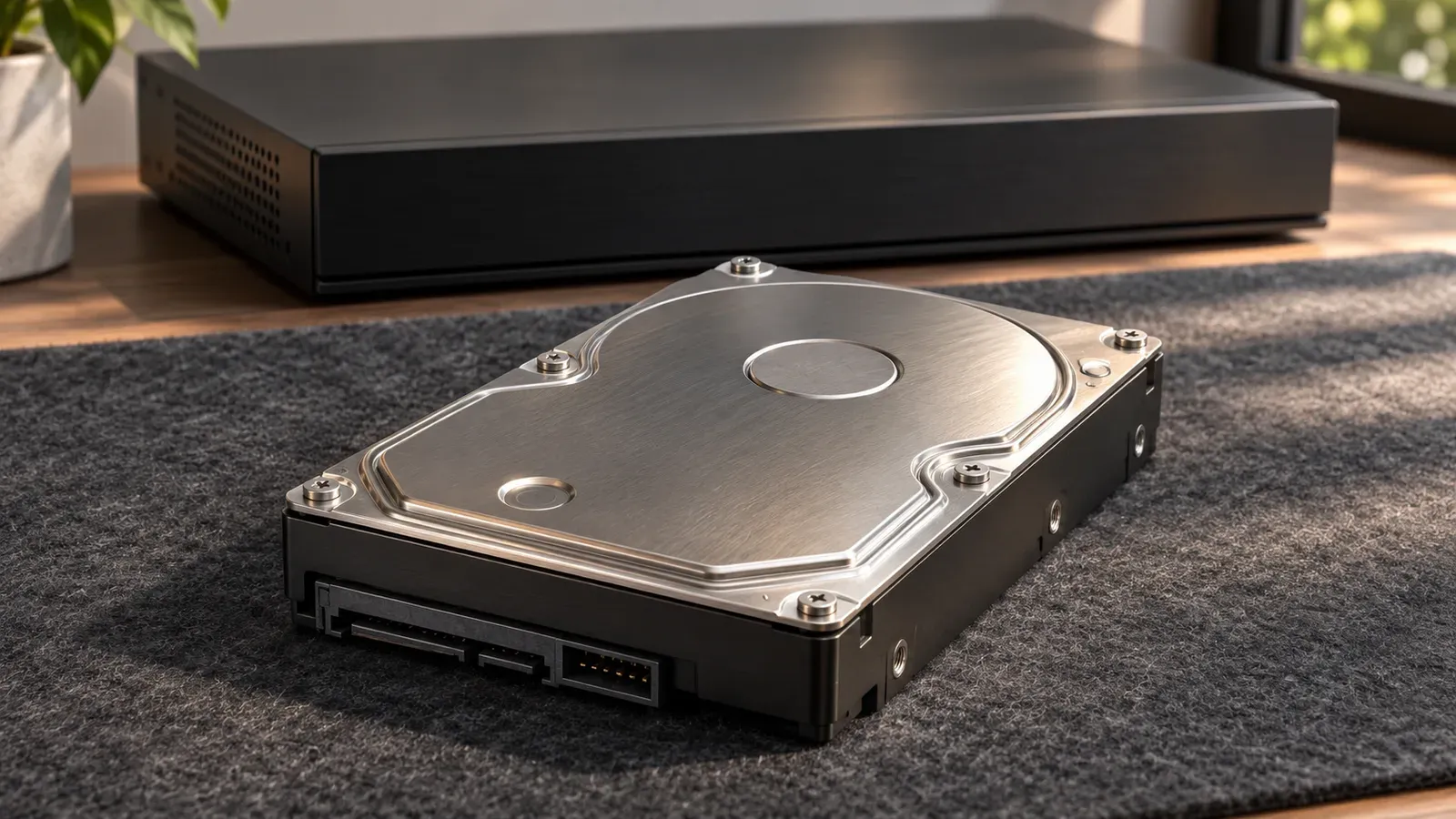
When homeowners install a local Power over Ethernet (PoE) security system, the most common operational failure is underestimating hard drive capacity. A user purchases a four-camera 4K system with an included 1TB hard drive, only to discover that the NVR overwrites footage after just three days.
If a property vandalism incident, hit-and-run collision, or package theft occurs while you are away on a two-week vacation, older footage is purged before you return to inspect it.
Sizing a Network Video Recorder (NVR) hard drive is a direct mathematical exercise. By understanding the relationship between camera resolution, frame rates, video compression codecs, and surveillance drive firmware, you can size your storage system with mathematical precision.
The NVR storage calculation formula
Video storage consumption is governed by bitrates, not megapixel counts alone. A camera set to 4K resolution can produce an unreadable, heavily compressed stream at 2 Mbps, or a pristine, high-fidelity stream at 12 Mbps.
To calculate storage requirements for any security camera, use the fundamental data conversion formula:
Daily Storage (GB) = [ Bitrate (kbps) × 3,600 seconds/hr × 24 hours/day ] / [ 8 bits/byte × 1,000,000 KB/GB ]Simplifying the constants (86,400 ÷ 8,000,000) gives a practical multiplier rule of thumb:
Daily Storage Rule: Daily Storage (GB) ≈ Bitrate in Mbps × 10.8
Applying the formula to common camera configurations
- 1080p (2MP) Camera at 2 Mbps (H.265, 15 fps): 2 Mbps × 10.8 = 21.6 GB per camera per day
- 2K (4MP / 1440p) Camera at 4 Mbps (H.265, 15 fps): 4 Mbps × 10.8 = 43.2 GB per camera per day
- 4K (8MP / 2160p) Camera at 6 Mbps (H.265, 15 fps): 6 Mbps × 10.8 = 64.8 GB per camera per day
- High-Bitrate 4K Camera at 8 Mbps (H.265, 20 fps): 8 Mbps × 10.8 = 86.4 GB per camera per day
Reolink Argus 3 Pro Security Camera
Why it fits A solar-powered camera may suit a location with adequate sunlight; charging and operation depend on conditions.
Key trade-off Local SD card records motion-triggered events, not 24/7 continuous stream (to preserve battery life).
Specifications & research
Wire-free solar-powered security camera. Source records checked on 2026-11-04. Manufacturer research, not hands-on testing.
- Resolution
- Argus 3 Pro resolution varies by revision; confirm the exact listing · Source checked 2026-11-04
- Power source
- Rechargeable battery + Reolink continuous solar panel · Source checked 2026-11-04
- Offline recording
- Local MicroSD card storage (up to 128GB, no subscription required) · Source checked 2026-11-04
Manufacturer documentation. Confirm exact Reolink model specifications and household safety limits before buying.
Video codecs: H.264 vs. H.265 vs. Smart Codecs
The video compression codec running on your IP camera processor is the single most influential variable governing your storage budget.
| Video Compression Codec | Storage Efficiency vs. H.264 | Processing Load on NVR | Image Artifacts in Fast Motion | Best Use Case |
|---|---|---|---|---|
| H.264 (AVC Baseline) | Baseline (0% savings) | Very Low (plays on any older browser/PC) | Low (stable, predictable macroblocks) | Legacy systems and older third-party software |
| H.265 (HEVC Standard) | 40% to 50% storage reduction | Moderate (requires modern GPU/CPU decoding) | Very Low (advanced intra-frame prediction) | Current industry standard for all 4K PoE systems |
| H.265+ / Smart H.265 | 60% to 75% storage reduction | High (camera performs real-time scene analysis) | Occasional ghosting when scene lighting shifts rapidly | Static residential yards with long overnight idle periods |
How H.265 saves 50% storage
The older H.264 standard divides video frames into rigid 16x16 pixel macroblocks. The newer H.265 (High Efficiency Video Coding) standard uses flexible Coding Tree Units (CTUs) that vary dynamically from 4x4 up to 64x64 pixels:
- When an outdoor camera monitors an empty driveway or grass lawn at night, large 64x64 blocks represent the unchanging background with almost zero data overhead.
- When an intruder walks into frame, the camera subdivides blocks down to 4x4 pixels over the moving person, preserving crisp facial and clothing details without wasting bandwidth on the static lawn.
Frame rate optimization: why 15 fps beats 30 fps
Many homeowners assume security cameras must record at 30 or 60 frames per second (fps) like a television broadcast. In physical security forensics, 30 fps is an unnecessary waste of storage:
- A walking human or driving vehicle is forensically identifiable at 15 frames per second.
- Dropping your camera frame rate from 30 fps to 15 fps reduces data throughput and storage requirements by 35% to 45% with zero loss in evidentiary value.
- The only applications requiring 30 fps are specialized high-speed License Plate Recognition (LPR) cameras monitoring vehicles traveling over 45 mph.
Master NVR hard drive sizing matrix
Use this reference table to select the correct hard drive size for continuous 24/7 recording based on camera count and target retention duration (calculated using standard H.265 at 15 fps):
| Camera Configuration | Daily Ingress Volume | 7-Day Storage | 14-Day Storage | 30-Day Storage | Recommended Drive Size |
|---|---|---|---|---|---|
| 2x 1080p (2MP) Cameras | 43.2 GB / day | 0.30 TB | 0.60 TB | 1.30 TB | 2TB Surveillance HDD |
| 4x 2K (4MP) Cameras | 172.8 GB / day | 1.21 TB | 2.42 TB | 5.18 TB | 6TB Surveillance HDD |
| 4x 4K (8MP) Cameras | 259.2 GB / day | 1.81 TB | 3.63 TB | 7.78 TB | 8TB Surveillance HDD |
| 6x 4K (8MP) Cameras | 388.8 GB / day | 2.72 TB | 5.44 TB | 11.66 TB | 12TB Surveillance HDD |
| 8x 4K (8MP) Cameras | 518.4 GB / day | 3.63 TB | 7.26 TB | 15.55 TB | 16TB (or 2x 8TB HDDs) |
Surveillance hard drives vs. desktop PC drives
One of the most frequent mistakes made when upgrading an NVR is buying an inexpensive desktop computer hard drive (such as a Western Digital Blue or Seagate BarraCuda) on sale. Within 12 to 18 months, desktop drives in NVRs suffer sector corruption and mechanical head failure.
Surveillance-grade hard drives (such as Western Digital Purple or Seagate SkyHawk) are engineered with completely different physical and firmware architectures:
1. Workload duty cycle (90% write vs. 80% read)
- Desktop PC Drives: Designed for an 8x5 operational profile (8 hours a day, 5 days a week). Their firmware is tuned for an 80% read / 20% write workload (loading programs, reading web pages).
- Surveillance Drives: Built for a 24/7/365 continuous operational profile (8,760 hours per year). Their firmware is tuned for a 90% write / 10% read workload, continuously recording incoming video streams without pausing.
2. ATA streaming command sets (AllFrame / ImagePerfect)
When a standard desktop hard drive encounters an unreadable or bad sector during a write operation, the drive halts data intake for several seconds, performing repeated retry algorithms to preserve every bit of data. In a PC, this prevents corrupted spreadsheets.
In an NVR, this pause causes the incoming video buffer to overflow. The drive drops multiple seconds of video across all connected cameras.
Surveillance drives use specialized ATA streaming firmware (such as WD AllFrame or Seagate ImagePerfect):
- If the drive encounters a slow or bad sector during write operations, it drops the single microscopic pixel block and immediately continues writing the live stream.
- Video playback continues smoothly without dropped seconds or black screens.
3. Rotational vibration (RV) sensors
Multi-bay NVRs (holding 2, 4, or 8 hard drives in a tight metal chassis) generate intense physical harmonic vibrations as drive platters spin at 5,400 or 7,200 RPM. In desktop drives, harmonic vibrations cause the read/write actuator head to oscillate off track, triggering write errors and premature mechanical failure.
Surveillance drives rated for multi-bay NVRs include hardware Rotational Vibration (RV) sensors on the drive PCB. The sensors detect chassis vibration and adjust the actuator head in real time to maintain precise alignment over data tracks.
Recording schedule optimization: 24/7 vs. motion bookmarks
Many users attempt to solve storage shortages by setting cameras to record only when motion occurs. While this saves disk space, motion-only recording creates dangerous evidentiary blind spots:
- Motion algorithms can fail during heavy snow, fog, or when intruders wear clothing matching the ambient background temperature.
- You lose vital contextual evidence: the car driving by slowly ten minutes earlier, or the shadow cast by an individual tampering with a side gate outside the motion detection zone.
The professional hybrid compromise
The optimal configuration combines continuous recording with intelligent event tagging:
- Continuous 24/7 Sub-Stream or Reduced Bitrate: Set all cameras to record continuously 24/7 at 10 to 15 fps using H.265. This guarantees you never miss a second of activity on your property.
- High-Bitrate Motion/AI Bookmarks: When the camera’s onboard AI detects a human or vehicle, the NVR tags the timeline with an event marker.
- Timeline Scrubbing Efficiency: When reviewing footage, you do not have to watch hours of empty video. You can click directly between flagged event markers on the timeline while retaining the ability to scrub backward to see uninterrupted pre-event context.