In this guideJump to a section
A camera can still show a picture on its old recorder and fail to work with a replacement that looks almost identical. Before buying a new box, identify the signal leaving the camera and confirm the complete camera-to-recorder path against the exact model documentation.
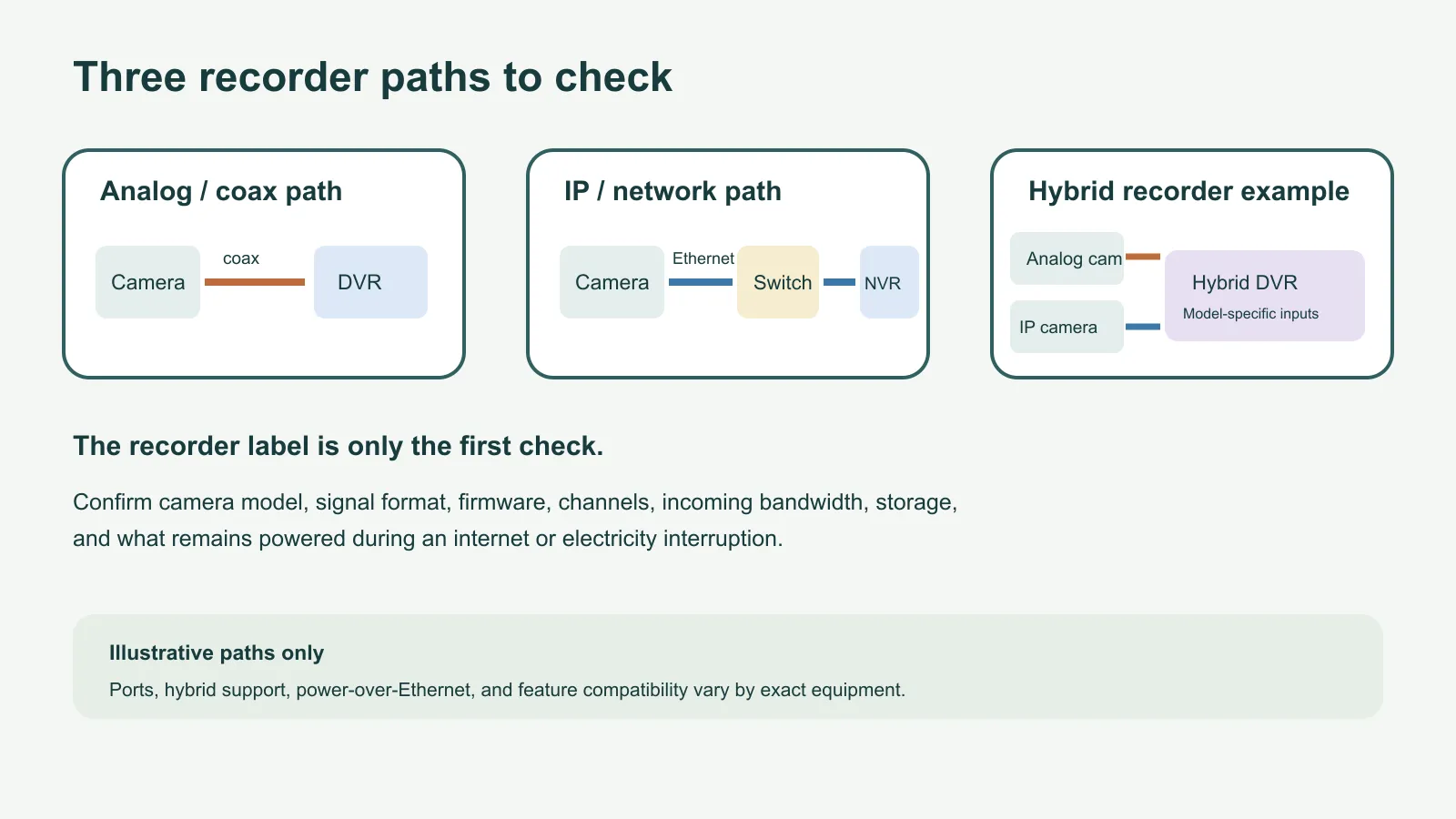
The short distinction is useful: a DVR commonly converts a supported analog camera signal at the recorder, while an NVR receives video already encoded by a supported IP camera over a network. The names do not settle every installation. Hybrid recorders can accept both analog and IP inputs, while a video encoder can bring a supported analog camera feed into a network video system. Those are specific product paths, not universal adapters.
Trace the path already in the house
Look at the camera label, the recorder model label, the cable route you can safely see, and any installation paperwork. Do not open the recorder or disconnect equipment to identify it. A BNC-style coax connector may suggest an analog system, but the connector alone does not confirm the camera’s signal format or the recorder’s accepted formats. Likewise, an Ethernet cable does not prove that an IP camera will work with every NVR.
Lorex’s cable guide describes Ethernet as the link for its IP cameras and supported NVR/network layouts, while its analog MPX cameras use BNC/coax to a DVR. Reolink’s manufacturer overview describes the common processing distinction: its IP-camera examples encode at the camera before the NVR receives the stream, while its analog-camera examples send a signal to a DVR for processing. These are typical architectures, not a definition that overrides a specific product manual. Use that as a vendor-specific example, then verify your own camera and recorder manuals. If you cannot read the labels without moving or opening equipment, ask the installer, property manager, or manufacturer support to identify the models.
| Path to compare | Typical connection | What must match |
|---|---|---|
| Analog camera to DVR | Camera sends a supported analog format over coax to the recorder; power may be separate | Camera signal format, recorder input format, channel, resolution/frame-rate support, and any required power arrangement |
| IP camera to NVR | Camera sends an encoded stream over Ethernet/network; some NVRs provide PoE ports, while others use a separate switch | Exact camera/recorder support, firmware, protocol, image settings, incoming bandwidth, channel capacity, and feature availability |
| Mixed or bridged system | A hybrid recorder accepts specified analog and IP channels, or an encoder brings a specified analog feed onto the network | The exact model’s channel split, supported camera formats, encoder compatibility, licenses, firmware, and feature limits |
For one documented hybrid example, ACTi’s YVR-120 specification lists four BNC analog inputs and separate IP-device capacity. Its channel mix is specific to that model; “hybrid” does not specify the input mix for another recorder.
An NVR does not always have a built-in PoE switch, and an IP camera does not have to plug directly into the recorder if the supported system uses a network switch. Those choices change cabling and power dependencies. The manufacturer’s diagram for the exact equipment is the authority for its supported topology.
A compatibility claim needs more than “ONVIF”
ONVIF support can help compatible IP devices communicate, but it does not promise that every camera feature transfers to every recorder. Lorex’s U-series setup guide asks users to verify the exact camera’s ONVIF conformance and firmware; it identifies live view, playback, and motion detection as tested functions in that setup, while audio, pan/tilt/zoom, notifications, lights, and sirens may be limited or unavailable. Treat that as evidence about the named Lorex series, not every ONVIF recorder.
Before purchasing, find the exact recorder’s current compatibility list and confirm the camera model and firmware. Then check the feature you care about by name. “Video works” does not prove that two-way audio, person detection, camera configuration, or event notifications will work through the recorder.
Check capacity as a system
A recorder can have enough physical camera inputs and still be the wrong fit. Record the camera count you have now and expect to add, then compare it with the recorder’s maximum supported channels and total incoming bandwidth. For IP systems, check the manual’s limit for combined incoming streams at your chosen resolution and frame rate; channel count alone does not show how much video data the recorder can handle.
Storage needs depend on the number of cameras, recording schedule, selected stream quality, motion/event settings, and usable drive capacity. Read the recorder manual for supported drive models, capacity limits, drive bays, and whether the system can use continuous, scheduled, or event recording. Check the exact recorder’s current drive-support list rather than choosing only by a drive’s physical size.
If the manufacturer provides a retention estimator, enter your actual camera settings and retain its assumptions with the result. If not, ask the recorder maker or installer to estimate retention using your planned stream settings and recording schedule. Do not treat a capacity calculation as a promise: actual footage days can change when resolution, frame rate, compression, motion, or sound settings change.
What stops during an outage?
Local recording, live viewing, and remote phone access are separate functions. A local recorder may continue recording without internet if its cameras, recorder, required local network equipment, and power remain available. A phone app viewed away from home may still need internet service and vendor infrastructure. A power outage can stop one or more parts of the chain unless the relevant equipment has an appropriate backup supply.
Use the manuals to map the actual path rather than assuming that “local storage” means the whole system stays up. Record whether the cameras receive power from the recorder, a switch, or separate adapters; whether a switch is in the path; what the recorder says about internet loss; and which devices share backup power. Do not connect equipment to a backup supply unless its own instructions and the backup unit’s ratings support that use.
This page focuses on recorder architecture and fit. For broader household functions beyond the camera system, use the smart-home offline-control audit.
Recorder fit record
Copy this short record into your household notes or take it to the installer. Unknown is a useful answer; it signals which manual page or support question to find next.
| Record | Your system |
|---|---|
| Camera make/model and firmware | |
| Recorder make/model and firmware | |
| Camera signal/protocol listed in manual | |
| Cable path: coax, Ethernet, wireless, or mixed | |
| Camera count now / planned | |
| Exact compatibility-list entry and supported features | |
| Recorder channel limit and total incoming-bandwidth limit | |
| Supported storage drive(s), usable capacity, and recording schedule | |
| During internet loss: local recording / remote viewing / alerts | |
| During power loss: cameras / switch / recorder / router on backup? | |
| Unanswered question and manufacturer/installer response |
Before replacing anything, ask the manufacturer or installer to confirm the full camera-to-recorder combination in writing, including any feature you rely on. The security camera guide is the next stop if you are still choosing the camera system itself.

